> ## Documentation Index
> Fetch the complete documentation index at: https://docs.4096bytes.com/llms.txt
> Use this file to discover all available pages before exploring further.
# CC Switch
> Import the 4096bytes Provider into CC Switch and manage CLI clients
CC Switch is a cross-platform AI CLI configuration manager. You can use it to manage Provider settings for Claude Code, Codex, Gemini CLI, OpenCode, and similar tools.
After importing 4096bytes into CC Switch, the Base URL, API Key, and model names are stored in one local configuration. You can then switch between CLI tools or Providers without repeatedly editing environment variables and config files.
One-click import writes the current API Key into your local CC Switch config. Only use it on your own computer. Do not import keys on shared computers, temporary remote machines, or untrusted environments.
## Install
CC Switch is open source on GitHub: [`farion1231/cc-switch`](https://github.com/farion1231/cc-switch).
Open the [`farion1231/cc-switch` Releases](https://github.com/farion1231/cc-switch/releases) page and check the latest version.
Choose the package for your system:
* macOS: `.dmg`
* Windows: `.msi`
* Linux: `.AppImage` or `.deb`.
Complete the installation. Open CC Switch at least once so the browser can launch it during import.
## One-click import
Prefer one-click import when it is available. It writes the Provider config into local CC Switch without manually copying every field.
Make sure CC Switch is installed and has been opened at least once.
Open the dashboard and find the API Key you want to import on the **API Keys** page.
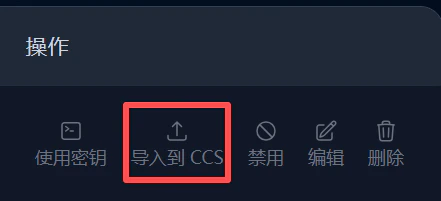
Click **Import to CCS** in that key row. If your system asks whether to open CC Switch, allow it.
 Review the Provider information in CC Switch and confirm the import.
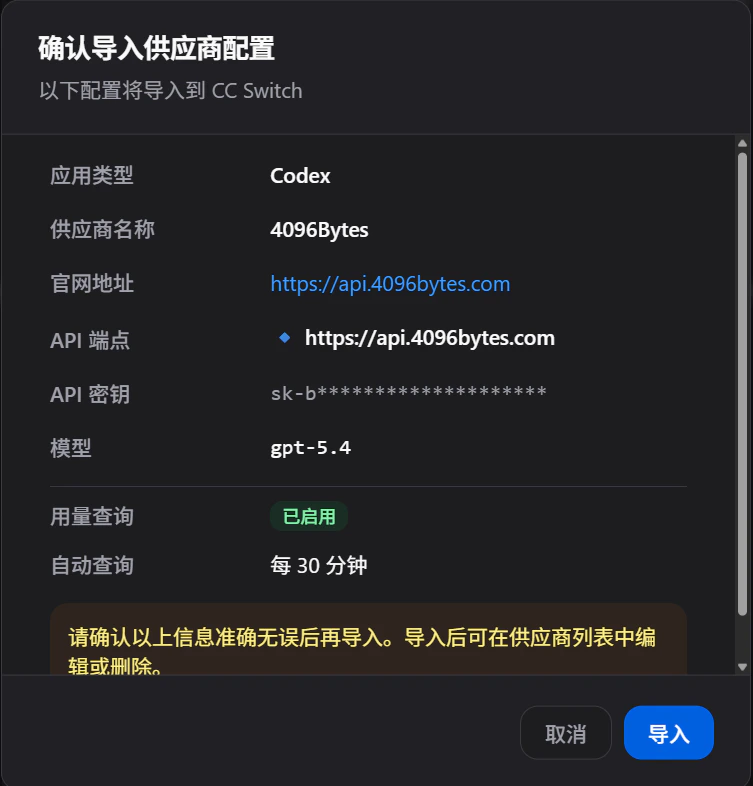 After import, CC Switch saves the Provider config for the selected API Key. If you delete or rotate the key later, import it again or update the config manually.
## Add the Provider manually
If one-click import is unavailable, add the 4096bytes Provider manually in CC Switch.
| CC Switch field | Value |
| --------------- | ------------------------------------------------------ |
| Preset provider | Choose custom configuration. |
| Provider ID | Use `4096bytes`. |
| Provider name | Use `4096bytes`. |
| Official link | `https://www.4096bytes.com` |
| API endpoint | `https://api.4096bytes.com` (do not enable "Full URL") |
| API Key | The API Key you created in the dashboard. |
Copy the Base URL and model name from the dashboard. Do not use old screenshots, chats, or another user's config.
## Verify
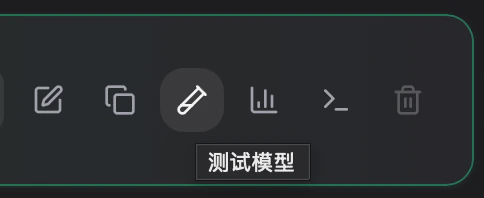
After import or manual setup, switch to the 4096bytes Provider in CC Switch and run a low-risk test.
After import, CC Switch saves the Provider config for the selected API Key. If you delete or rotate the key later, import it again or update the config manually.
## Add the Provider manually
If one-click import is unavailable, add the 4096bytes Provider manually in CC Switch.
| CC Switch field | Value |
| --------------- | ------------------------------------------------------ |
| Preset provider | Choose custom configuration. |
| Provider ID | Use `4096bytes`. |
| Provider name | Use `4096bytes`. |
| Official link | `https://www.4096bytes.com` |
| API endpoint | `https://api.4096bytes.com` (do not enable "Full URL") |
| API Key | The API Key you created in the dashboard. |
Copy the Base URL and model name from the dashboard. Do not use old screenshots, chats, or another user's config.
## Verify
After import or manual setup, switch to the 4096bytes Provider in CC Switch and run a low-risk test.
 ## Troubleshooting
* If the browser does not open CC Switch, confirm CC Switch is installed and has been launched once.
* If authentication fails after import, create a new API Key and import it again.
* If a CLI client does not use the new Provider, confirm it is managed by CC Switch and restart the terminal after switching.
## Troubleshooting
* If the browser does not open CC Switch, confirm CC Switch is installed and has been launched once.
* If authentication fails after import, create a new API Key and import it again.
* If a CLI client does not use the new Provider, confirm it is managed by CC Switch and restart the terminal after switching.