> ## Documentation Index
> Fetch the complete documentation index at: https://docs.4096bytes.com/llms.txt
> Use this file to discover all available pages before exploring further.
# Claude Code
> Configure 4096bytes access in Claude Code
Claude Code reads Anthropic-related configuration. When connecting to 4096bytes, do not paste an OpenAI compatible URL into unrelated fields and do not manually append `/v1/messages`. Use the Claude Code settings shown in the dashboard.
Prefer managing the Claude Code Provider with [CC Switch](/en/clients/cc-switch). It lets you switch between 4096bytes, official Claude, and other Providers without repeatedly editing environment variables.
## Prerequisites
* You have completed [Create an account](/en/quickstart/create-account).
* You have completed [Get an API Key](/en/quickstart/get-api-key).
* Claude Code is installed and `claude` can start.
* You have copied the Claude Code configuration from the dashboard.
If you use both an official Claude subscription and a 4096bytes API Key, keep them in separate terminal profiles or CC Switch profiles to avoid environment variable conflicts.
## Install
If Claude Code is not installed, follow the [official Claude Code setup documentation](https://docs.claude.com/en/docs/claude-code/setup).
macOS, Linux, or WSL:
```bash theme={null}
curl -fsSL https://claude.ai/install.sh | bash
```
Windows with WinGet:
```powershell theme={null}
winget install Anthropic.ClaudeCode
```
If you use npm for global CLI tools:
```bash theme={null}
npm install -g @anthropic-ai/claude-code
```
After installation, reopen the terminal and verify:
```bash theme={null}
claude --version
```
## Copy config from the dashboard
Open the dashboard and go to **API Keys**.
Create a dedicated key for Claude Code, such as `claude-code-work` or `claude-code-mac`.
Click **Use key** in that key row. If the dashboard offers client options, choose **Claude Code**.
Select `macOS / Linux`, `Windows PowerShell`, or `Windows CMD`, then copy the command shown in the dashboard.
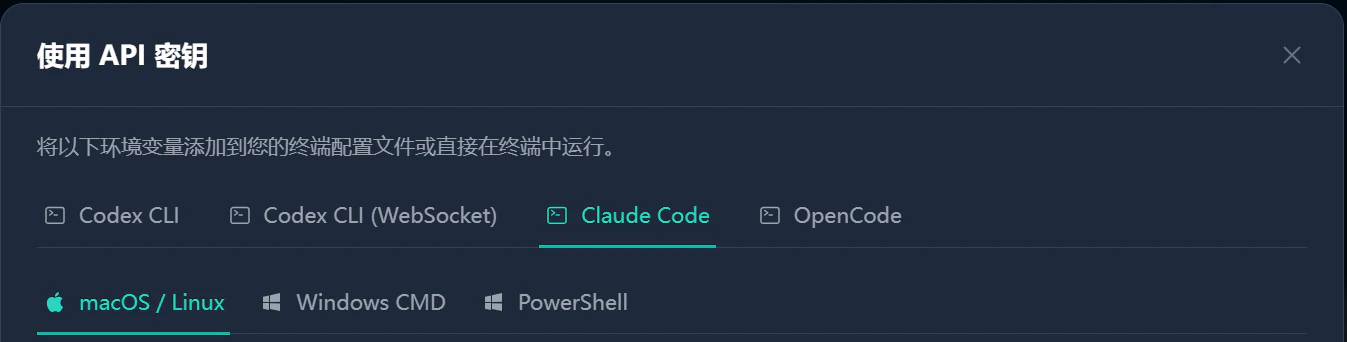 The dashboard command includes the current API Key. The examples below use `YOUR_4096BYTES_API_KEY` as a placeholder.
## Temporary environment variables
Use this method for a quick test. The variables disappear when you close the terminal.
### macOS or Linux
```bash theme={null}
export ANTHROPIC_BASE_URL="https://api.4096bytes.com"
export ANTHROPIC_AUTH_TOKEN="YOUR_4096BYTES_API_KEY"
export CLAUDE_CODE_DISABLE_NONESSENTIAL_TRAFFIC=1
claude
```
If your Claude Code version requires `ANTHROPIC_API_KEY`, use this instead:
```bash theme={null}
export ANTHROPIC_BASE_URL="https://api.4096bytes.com"
export ANTHROPIC_API_KEY="YOUR_4096BYTES_API_KEY"
export CLAUDE_CODE_DISABLE_NONESSENTIAL_TRAFFIC=1
claude
```
Do not set both `ANTHROPIC_AUTH_TOKEN` and `ANTHROPIC_API_KEY`. Prefer the variable name shown in the dashboard.
### Windows PowerShell
```powershell theme={null}
$env:ANTHROPIC_BASE_URL = "https://api.4096bytes.com"
$env:ANTHROPIC_AUTH_TOKEN = "YOUR_4096BYTES_API_KEY"
$env:CLAUDE_CODE_DISABLE_NONESSENTIAL_TRAFFIC = "1"
claude
```
If the dashboard uses `ANTHROPIC_API_KEY`, replace the second line with:
```powershell theme={null}
$env:ANTHROPIC_API_KEY = "YOUR_4096BYTES_API_KEY"
```
### Windows CMD
```bat theme={null}
set ANTHROPIC_BASE_URL=https://api.4096bytes.com
set ANTHROPIC_AUTH_TOKEN=YOUR_4096BYTES_API_KEY
set CLAUDE_CODE_DISABLE_NONESSENTIAL_TRAFFIC=1
claude
```
If the dashboard uses `ANTHROPIC_API_KEY`, replace the second line with:
```bat theme={null}
set ANTHROPIC_API_KEY=YOUR_4096BYTES_API_KEY
```
## Persist in Claude Code settings
For long-term use, write the environment variables into the Claude Code settings file.
```json theme={null}
{
"env": {
"ANTHROPIC_BASE_URL": "https://api.4096bytes.com",
"ANTHROPIC_AUTH_TOKEN": "YOUR_4096BYTES_API_KEY",
"CLAUDE_CODE_DISABLE_NONESSENTIAL_TRAFFIC": "1",
"CLAUDE_CODE_ATTRIBUTION_HEADER": "0"
}
}
```
A common path is `~/.claude/settings.json`. Save the file and restart Claude Code.
Do not put API Keys in project `.env` files, README files, screenshots, or shared documents. Claude Code reads the current terminal environment, so also avoid exposing keys in logs and screenshots.
## Persist in shell config
You can also write the variables into `~/.zshrc` or `~/.bashrc`.
```bash theme={null}
export ANTHROPIC_BASE_URL="https://api.4096bytes.com"
export ANTHROPIC_AUTH_TOKEN="YOUR_4096BYTES_API_KEY"
export CLAUDE_CODE_DISABLE_NONESSENTIAL_TRAFFIC=1
```
Then reload the shell:
```bash theme={null}
source ~/.zshrc
```
For Bash:
```bash theme={null}
source ~/.bashrc
```
Run:
```bash theme={null}
claude
```
## Specify a model
If Claude Code needs an explicit model, use the model name shown for Claude Code or Claude compatible access in the dashboard.
```bash theme={null}
claude --model PASTE_MODEL_NAME_FROM_DASHBOARD
```
The model name must match the dashboard exactly.
## Notes
* Use the root Base URL shown in the dashboard, for example `https://api.4096bytes.com`. Do not append `/v1/messages`.
* After switching Providers, reopen the terminal or confirm the environment variables are updated.
* If you use CC Switch, confirm the active profile is 4096bytes.
* If you run Claude Code inside VS Code Terminal, reopen VS Code after changing environment variables.
## Troubleshooting
| Issue | What to do |
| ---------------------------- | --------------------------------------------------------------------------------------------------------- |
| Authentication failed | Confirm the API Key is complete and only one of `ANTHROPIC_AUTH_TOKEN` or `ANTHROPIC_API_KEY` is enabled. |
| Wrong address | Use the root address shown in the dashboard. Do not append the full request path. |
| Still using official service | Reopen the terminal and check whether old Claude environment variables still exist. |
| Model unavailable | Use a Claude Code or Claude compatible model name shown in the dashboard. |
| Not working in VS Code | Close and reopen VS Code so the terminal reads the updated environment. |
The dashboard command includes the current API Key. The examples below use `YOUR_4096BYTES_API_KEY` as a placeholder.
## Temporary environment variables
Use this method for a quick test. The variables disappear when you close the terminal.
### macOS or Linux
```bash theme={null}
export ANTHROPIC_BASE_URL="https://api.4096bytes.com"
export ANTHROPIC_AUTH_TOKEN="YOUR_4096BYTES_API_KEY"
export CLAUDE_CODE_DISABLE_NONESSENTIAL_TRAFFIC=1
claude
```
If your Claude Code version requires `ANTHROPIC_API_KEY`, use this instead:
```bash theme={null}
export ANTHROPIC_BASE_URL="https://api.4096bytes.com"
export ANTHROPIC_API_KEY="YOUR_4096BYTES_API_KEY"
export CLAUDE_CODE_DISABLE_NONESSENTIAL_TRAFFIC=1
claude
```
Do not set both `ANTHROPIC_AUTH_TOKEN` and `ANTHROPIC_API_KEY`. Prefer the variable name shown in the dashboard.
### Windows PowerShell
```powershell theme={null}
$env:ANTHROPIC_BASE_URL = "https://api.4096bytes.com"
$env:ANTHROPIC_AUTH_TOKEN = "YOUR_4096BYTES_API_KEY"
$env:CLAUDE_CODE_DISABLE_NONESSENTIAL_TRAFFIC = "1"
claude
```
If the dashboard uses `ANTHROPIC_API_KEY`, replace the second line with:
```powershell theme={null}
$env:ANTHROPIC_API_KEY = "YOUR_4096BYTES_API_KEY"
```
### Windows CMD
```bat theme={null}
set ANTHROPIC_BASE_URL=https://api.4096bytes.com
set ANTHROPIC_AUTH_TOKEN=YOUR_4096BYTES_API_KEY
set CLAUDE_CODE_DISABLE_NONESSENTIAL_TRAFFIC=1
claude
```
If the dashboard uses `ANTHROPIC_API_KEY`, replace the second line with:
```bat theme={null}
set ANTHROPIC_API_KEY=YOUR_4096BYTES_API_KEY
```
## Persist in Claude Code settings
For long-term use, write the environment variables into the Claude Code settings file.
```json theme={null}
{
"env": {
"ANTHROPIC_BASE_URL": "https://api.4096bytes.com",
"ANTHROPIC_AUTH_TOKEN": "YOUR_4096BYTES_API_KEY",
"CLAUDE_CODE_DISABLE_NONESSENTIAL_TRAFFIC": "1",
"CLAUDE_CODE_ATTRIBUTION_HEADER": "0"
}
}
```
A common path is `~/.claude/settings.json`. Save the file and restart Claude Code.
Do not put API Keys in project `.env` files, README files, screenshots, or shared documents. Claude Code reads the current terminal environment, so also avoid exposing keys in logs and screenshots.
## Persist in shell config
You can also write the variables into `~/.zshrc` or `~/.bashrc`.
```bash theme={null}
export ANTHROPIC_BASE_URL="https://api.4096bytes.com"
export ANTHROPIC_AUTH_TOKEN="YOUR_4096BYTES_API_KEY"
export CLAUDE_CODE_DISABLE_NONESSENTIAL_TRAFFIC=1
```
Then reload the shell:
```bash theme={null}
source ~/.zshrc
```
For Bash:
```bash theme={null}
source ~/.bashrc
```
Run:
```bash theme={null}
claude
```
## Specify a model
If Claude Code needs an explicit model, use the model name shown for Claude Code or Claude compatible access in the dashboard.
```bash theme={null}
claude --model PASTE_MODEL_NAME_FROM_DASHBOARD
```
The model name must match the dashboard exactly.
## Notes
* Use the root Base URL shown in the dashboard, for example `https://api.4096bytes.com`. Do not append `/v1/messages`.
* After switching Providers, reopen the terminal or confirm the environment variables are updated.
* If you use CC Switch, confirm the active profile is 4096bytes.
* If you run Claude Code inside VS Code Terminal, reopen VS Code after changing environment variables.
## Troubleshooting
| Issue | What to do |
| ---------------------------- | --------------------------------------------------------------------------------------------------------- |
| Authentication failed | Confirm the API Key is complete and only one of `ANTHROPIC_AUTH_TOKEN` or `ANTHROPIC_API_KEY` is enabled. |
| Wrong address | Use the root address shown in the dashboard. Do not append the full request path. |
| Still using official service | Reopen the terminal and check whether old Claude environment variables still exist. |
| Model unavailable | Use a Claude Code or Claude compatible model name shown in the dashboard. |
| Not working in VS Code | Close and reopen VS Code so the terminal reads the updated environment. |