> ## Documentation Index
> Fetch the complete documentation index at: https://docs.4096bytes.com/llms.txt
> Use this file to discover all available pages before exploring further.
# Codex
> Configure 4096bytes in Codex CLI
Codex CLI can connect to 4096bytes through an OpenAI compatible Provider. You need to write the dashboard-generated `config.toml` and `auth.json` into the Codex config directory.
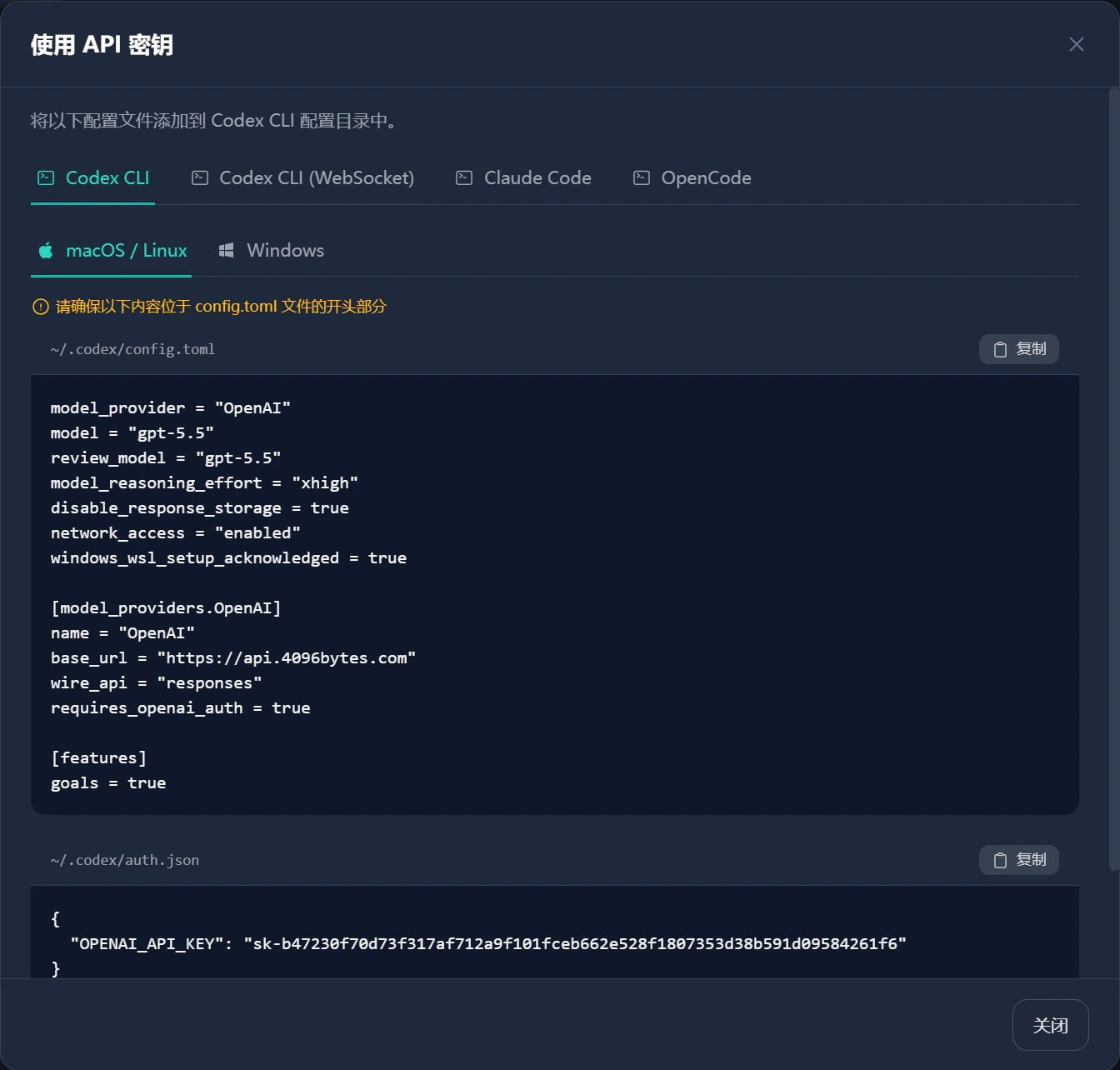
Prefer copying the config from the dashboard **Use key** dialog. It shows the correct path for your system and inserts the current API Key automatically.
## Prerequisites
* You have completed [Create an account](/en/quickstart/create-account).
* You have completed [Get an API Key](/en/quickstart/get-api-key).
* Codex CLI is installed and `codex --version` works.
* The **Use key** dialog is open for the API Key you want to use.
The API Key in `auth.json` is stored as a local plaintext credential. Do not commit `~/.codex/auth.json`, screenshots, or terminal output to a repository or chat.
## Install
If Codex CLI is not installed, check the latest instructions in the [OpenAI Codex GitHub repository](https://github.com/openai/codex).
macOS or Linux:
```bash theme={null}
curl -fsSL https://chatgpt.com/codex/install.sh | sh
```
Windows PowerShell:
```powershell theme={null}
powershell -ExecutionPolicy ByPass -c "irm https://chatgpt.com/codex/install.ps1 | iex"
```
If you use npm for global CLI tools:
```bash theme={null}
npm install -g @openai/codex
```
After installation, reopen the terminal and verify:
```bash theme={null}
codex --version
```
## Copy config from the dashboard
Open the dashboard and go to **API Keys**.
Find the key you want to use for Codex, click **Use key**, then choose **Codex CLI**.
Select **macOS / Linux** or **Windows**. The dashboard shows the target config file paths.
Copy the `config.toml` and `auth.json` snippets. Put `config.toml` at the beginning of the file so old config does not override it.
 ## macOS or Linux
### Write `config.toml`
Open or create `~/.codex/config.toml`, then put this block at the beginning.
```toml theme={null}
model_provider = "OpenAI"
model = "gpt-5.5"
review_model = "gpt-5.5"
model_reasoning_effort = "xhigh"
disable_response_storage = true
network_access = "enabled"
windows_wsl_setup_acknowledged = true
[model_providers.OpenAI]
name = "OpenAI"
base_url = "https://api.4096bytes.com"
wire_api = "responses"
requires_openai_auth = true
[features]
goals = true
```
Use the `model` and `review_model` values shown in the dashboard. If your dashboard shows a different model name, use that value.
### Write `auth.json`
Open or create `~/.codex/auth.json`:
```json theme={null}
{
"OPENAI_API_KEY": "YOUR_4096BYTES_API_KEY"
}
```
Replace `YOUR_4096BYTES_API_KEY` with the API Key you created in the dashboard.
### Start Codex
Save both files, reopen the terminal, and run:
```bash theme={null}
codex
```
You can also start with a low-risk prompt:
```bash theme={null}
codex "Describe the purpose of the current directory in one sentence. Do not modify files."
```
## Windows
### Write `config.toml`
Open or create:
```text theme={null}
%USERPROFILE%\.codex\config.toml
```
Put this block at the beginning.
```toml theme={null}
model_provider = "OpenAI"
model = "gpt-5.5"
review_model = "gpt-5.5"
model_reasoning_effort = "xhigh"
disable_response_storage = true
network_access = "enabled"
windows_wsl_setup_acknowledged = true
[model_providers.OpenAI]
name = "OpenAI"
base_url = "https://api.4096bytes.com"
wire_api = "responses"
requires_openai_auth = true
[features]
goals = true
```
If you run Codex inside WSL, configure `~/.codex/config.toml` inside WSL instead of the Windows user directory.
### Write `auth.json`
Open or create:
```text theme={null}
%USERPROFILE%\.codex\auth.json
```
Write:
```json theme={null}
{
"OPENAI_API_KEY": "YOUR_4096BYTES_API_KEY"
}
```
If you run Codex inside WSL, write `~/.codex/auth.json` inside WSL.
### Start Codex
Save both files, reopen PowerShell or Windows Terminal, and run:
```powershell theme={null}
codex
```
You can also test with:
```powershell theme={null}
codex "Describe the purpose of the current directory in one sentence. Do not modify files."
```
## Field reference
| Field | Meaning |
| ---------------------- | ------------------------------------------------------------------------------------- |
| `model_provider` | Selects the Provider Codex should use. Here it must match `[model_providers.OpenAI]`. |
| `model` | Default model name. Copy the value shown in the dashboard. |
| `review_model` | Model used by Codex Review. Usually the same as `model`. |
| `base_url` | 4096bytes API address. Use `https://api.4096bytes.com`. |
| `wire_api` | Uses the Responses API route. Set it to `responses`. |
| `requires_openai_auth` | Makes Codex read `OPENAI_API_KEY` from `auth.json`. |
| `OPENAI_API_KEY` | The 4096bytes API Key created in the dashboard. |
## Common issues
Put the new config at the beginning of `config.toml`. Save, close the terminal, and run `codex` again.
Check that `auth.json` is valid JSON. Confirm the API Key has no missing characters, newlines, or extra spaces.
`model` and `review_model` must match the dashboard model name exactly. Do not copy names from someone else's screenshot.
Confirm where Codex is running. If it runs in WSL, configure WSL's `~/.codex/`, not `%USERPROFILE%\.codex\`.
You can keep them, but make sure `model_provider = "OpenAI"` points to the 4096bytes `[model_providers.OpenAI]` block.
## macOS or Linux
### Write `config.toml`
Open or create `~/.codex/config.toml`, then put this block at the beginning.
```toml theme={null}
model_provider = "OpenAI"
model = "gpt-5.5"
review_model = "gpt-5.5"
model_reasoning_effort = "xhigh"
disable_response_storage = true
network_access = "enabled"
windows_wsl_setup_acknowledged = true
[model_providers.OpenAI]
name = "OpenAI"
base_url = "https://api.4096bytes.com"
wire_api = "responses"
requires_openai_auth = true
[features]
goals = true
```
Use the `model` and `review_model` values shown in the dashboard. If your dashboard shows a different model name, use that value.
### Write `auth.json`
Open or create `~/.codex/auth.json`:
```json theme={null}
{
"OPENAI_API_KEY": "YOUR_4096BYTES_API_KEY"
}
```
Replace `YOUR_4096BYTES_API_KEY` with the API Key you created in the dashboard.
### Start Codex
Save both files, reopen the terminal, and run:
```bash theme={null}
codex
```
You can also start with a low-risk prompt:
```bash theme={null}
codex "Describe the purpose of the current directory in one sentence. Do not modify files."
```
## Windows
### Write `config.toml`
Open or create:
```text theme={null}
%USERPROFILE%\.codex\config.toml
```
Put this block at the beginning.
```toml theme={null}
model_provider = "OpenAI"
model = "gpt-5.5"
review_model = "gpt-5.5"
model_reasoning_effort = "xhigh"
disable_response_storage = true
network_access = "enabled"
windows_wsl_setup_acknowledged = true
[model_providers.OpenAI]
name = "OpenAI"
base_url = "https://api.4096bytes.com"
wire_api = "responses"
requires_openai_auth = true
[features]
goals = true
```
If you run Codex inside WSL, configure `~/.codex/config.toml` inside WSL instead of the Windows user directory.
### Write `auth.json`
Open or create:
```text theme={null}
%USERPROFILE%\.codex\auth.json
```
Write:
```json theme={null}
{
"OPENAI_API_KEY": "YOUR_4096BYTES_API_KEY"
}
```
If you run Codex inside WSL, write `~/.codex/auth.json` inside WSL.
### Start Codex
Save both files, reopen PowerShell or Windows Terminal, and run:
```powershell theme={null}
codex
```
You can also test with:
```powershell theme={null}
codex "Describe the purpose of the current directory in one sentence. Do not modify files."
```
## Field reference
| Field | Meaning |
| ---------------------- | ------------------------------------------------------------------------------------- |
| `model_provider` | Selects the Provider Codex should use. Here it must match `[model_providers.OpenAI]`. |
| `model` | Default model name. Copy the value shown in the dashboard. |
| `review_model` | Model used by Codex Review. Usually the same as `model`. |
| `base_url` | 4096bytes API address. Use `https://api.4096bytes.com`. |
| `wire_api` | Uses the Responses API route. Set it to `responses`. |
| `requires_openai_auth` | Makes Codex read `OPENAI_API_KEY` from `auth.json`. |
| `OPENAI_API_KEY` | The 4096bytes API Key created in the dashboard. |
## Common issues
Put the new config at the beginning of `config.toml`. Save, close the terminal, and run `codex` again.
Check that `auth.json` is valid JSON. Confirm the API Key has no missing characters, newlines, or extra spaces.
`model` and `review_model` must match the dashboard model name exactly. Do not copy names from someone else's screenshot.
Confirm where Codex is running. If it runs in WSL, configure WSL's `~/.codex/`, not `%USERPROFILE%\.codex\`.
You can keep them, but make sure `model_provider = "OpenAI"` points to the 4096bytes `[model_providers.OpenAI]` block.