

config.toml and auth.json into the Codex config directory.
Prefer copying the config from the dashboard Use key dialog. It shows the correct path for your system and inserts the current API Key automatically.
Prerequisites
- You have completed Create an account.
- You have completed Get an API Key.
- Codex CLI is installed and
codex --versionworks. - The Use key dialog is open for the API Key you want to use.
Install
If Codex CLI is not installed, check the latest instructions in the OpenAI Codex GitHub repository. macOS or Linux:Copy config from the dashboard
1
Open API Keys
Open the dashboard and go to API Keys.
2
Choose Codex CLI
Find the key you want to use for Codex, click Use key, then choose Codex CLI.
3
Choose your system
Select macOS / Linux or Windows. The dashboard shows the target config file paths.
4
Copy config
Copy the
config.toml and auth.json snippets. Put config.toml at the beginning of the file so old config does not override it.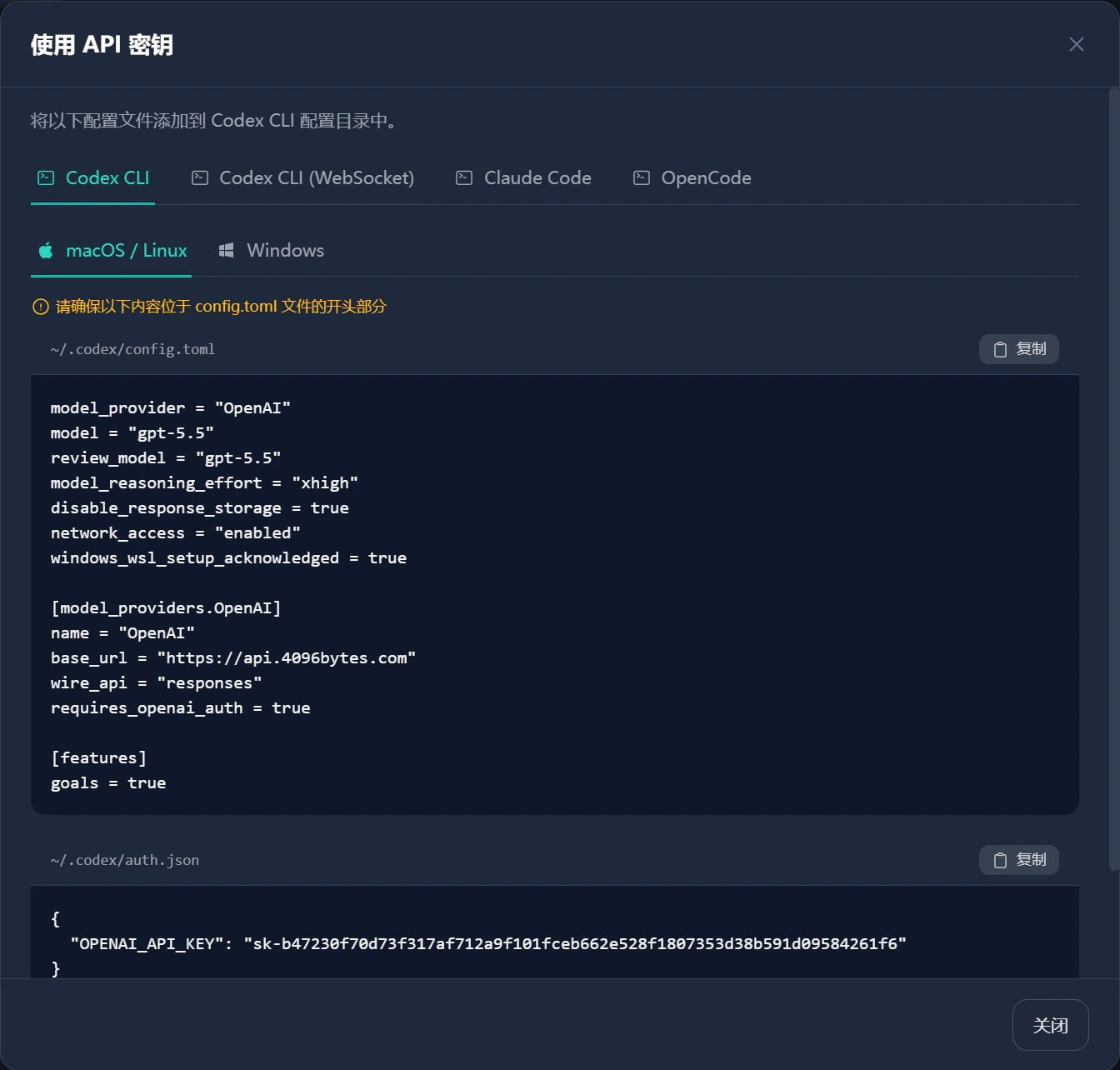
macOS or Linux
Write config.toml
Open or create ~/.codex/config.toml, then put this block at the beginning.
model and review_model values shown in the dashboard. If your dashboard shows a different model name, use that value.
Write auth.json
Open or create ~/.codex/auth.json:
YOUR_4096BYTES_API_KEY with the API Key you created in the dashboard.
Start Codex
Save both files, reopen the terminal, and run:Windows
Write config.toml
Open or create:
~/.codex/config.toml inside WSL instead of the Windows user directory.
Write auth.json
Open or create:
~/.codex/auth.json inside WSL.
Start Codex
Save both files, reopen PowerShell or Windows Terminal, and run:Field reference
Common issues
Codex still uses the old model or address
Codex still uses the old model or address
Put the new config at the beginning of
config.toml. Save, close the terminal, and run codex again.Codex reports authentication failure
Codex reports authentication failure
Check that
auth.json is valid JSON. Confirm the API Key has no missing characters, newlines, or extra spaces.Codex cannot find the model
Codex cannot find the model
model and review_model must match the dashboard model name exactly. Do not copy names from someone else’s screenshot.Windows config does not take effect
Windows config does not take effect
Confirm where Codex is running. If it runs in WSL, configure WSL’s
~/.codex/, not %USERPROFILE%\.codex\.The config already has other Providers
The config already has other Providers
You can keep them, but make sure
model_provider = "OpenAI" points to the 4096bytes [model_providers.OpenAI] block.